
This Ransomware arrives on a system as a file dropped by other malware or as a file downloaded unknowingly by users when visiting malicious sites.
It terminates itself if it detects it is being run in a virtual environment.
Arrival Details
This Ransomware arrives on a system as a file dropped by other malware or as a file downloaded unknowingly by users when visiting malicious sites.
Installation
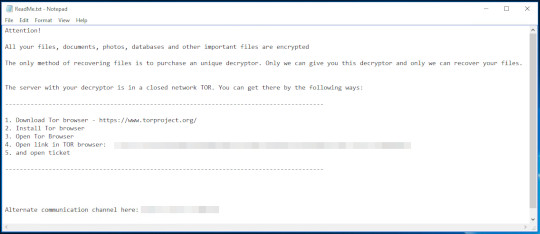
This Ransomware leaves text files that serve as ransom notes containing the following:
- {Encrypted Directory}\ReadMe.txt
Other Details
This Ransomware terminates itself if it detects it is being run in a virtual environment.
It does the following:
- It encrypts files found in the following drive types:
- Fixed drive
- Network drive
- It uses WQL to delete shadow copies.
Ransomware Routine
This Ransomware avoids encrypting files found in the following folders:
- Windows
- ProgramData
- $Recycle.bin
- System Volume Information
It appends the following extension to the file name of the encrypted files:
- .TZW
Step 1
Trend Micro Predictive Machine Learning detects and blocks malware at the first sign of its existence, before it executes on your system. When enabled, your Trend Micro product detects this malware under the following machine learning name:
- TROJ.Win32.TRX.XXPE50FFF065
Step 2
Before doing any scans, Windows 7, Windows 8, Windows 8.1, and Windows 10 users must disable System Restore to allow full scanning of their computers.
Step 3
Note that not all files, folders, and registry keys and entries are installed on your computer during this malware's/spyware's/grayware's execution. This may be due to incomplete installation or other operating system conditions. If you do not find the same files/folders/registry information, please proceed to the next step.
Step 4
Search and delete these files
[ Learn More ]
There may be some files that are hidden. Please make sure you check the Search Hidden Files and Folders checkbox in the "More advanced options" option to include all hidden files and folders in the search result.
Step 5
Scan your computer with your Trend Micro product to delete files detected as Ransom.Win32.CRYPTOLOCK.E. If the detected files have already been cleaned, deleted, or quarantined by your Trend Micro product, no further step is required. You may opt to simply delete the quarantined files. Please check the following Trend Micro Support pages for more information:
Step 6
Restore encrypted files from backup.